


Marching Band Drill Design Software

Software Download
Downloading and installing are free of charge, but the functionality will be limited until you purchase and activate the software.
Please read the terms of use below before downloading.
*Please note that by clicking the download button, you are deemed to have agreed to the terms of use.*
If the download or installation does not work properly, please check “When a warning message is displayed” and follow the steps there.
Drill Studio ver. 6.5.15 update time 02/03/2026 12:00

for Mac OSX
dmg disk image format
Intel 64bit &
Apple Silicon


x86(32bit)
64bit
for Windows
exe installer format
Updated Infomation
Recommended System Requirements
Updated Contents
- The maximum number of performers has been increased to 3,000 (high PC specifications are required).
- Process optimization has been implemented to ensure smoother performance with large numbers of performers.
- The Mirror Tool now supports selecting multiple sheets, allowing mirrors to be applied to sub-sheets and groups of sheets at once.
- The axis angle of the Mirror Tool can now be adjusted, enabling vertical and diagonal mirroring.
- When no texture is specified during an instrument change, the default texture is now applied.
- Fixed an issue where direction arrows were displayed too thin.
- Changed the behavior so that when a turn setting is canceled, the turn from the previous sheet is inherited.
- Adjusted the physical behavior of flags.
- Fixed an issue where audio playback would stop when the output sound device (such as earphones or headphones) was changed.
- Fixed a bug where resetting to Pose 0 in the Pose Library caused incorrect behavior.
- Fixed an issue where switching between fullscreen and windowed mode did not work correctly on some versions of Windows.
- Fixed a bug where sub-sheet numbering was not updated when certain sheets were set to be excluded from printing.
- Corrected an error in the warning display
- Added a fallback when the server is congested due to AI-based count generation
- Modified the FTP upload logic to enhance security
- Changed the interpolation feature so it is no longer limited to sub-sheets and can now interpolate between any selected sheets.
- Renamed “Sub-sheet Interpolation” to “Sheet Interpolation” to reflect the updated functionality.
- Fixed a bug where sub-sheet numbers were not updated when some sheets were set to not be printed.
- Fixed an issue where positions were unintentionally changed when specifying Z positions across multiple sheets.
- Corrected incorrect button labels in warning messages.
- Fixed unintended behavior when moving bounding boxes or performers using the drag selection tool.
- Fixed an issue where files could not be overwritten during DSM upload when 10 files already existed.---------
[Supported Operating Systems]
・Windows 10 / 11 (64-bit)
・macOS 11 Big Sur or later (Compatible with Intel and Apple Silicon)
[CPU]
・Intel Core i5 (4th generation or newer), or equivalent
・Compatible with Apple M1 / M2 / M3
[Memory]
・8 GB or more (16 GB or more recommended)
[Storage]
・At least 20 GB of free disk space
・SSD recommended (HDD is supported, but may result in slower performance)
[Display]
・Resolution of 1200 × 800 pixels or higher (Full HD or higher recommended)
・Display capable of High Color output
[Graphics]
・Windows: GPU compatible with DirectX 11 (VRAM 2 GB or more recommended)
・macOS: GPU compatible with Metal
・Systems with integrated graphics are supported, but may experience reduced performance during high-load rendering
[Sound]
・16-bit stereo
・Capable of playing 44.1 kHz WAV audio
[Input Device]
・Mouse with scroll wheel (required)
[Other Notes]
・These specifications are for recommended performance and are provided as a guideline.
・Running security software or other background applications may affect performance.
・Please make sure to install and test the application before purchasing.
Sample Costume Textures for Ver.6 Series
Texture samples for creating original costumes.
Included are textures for costumes and hats, as well as reference images for mapping the textures.
ZIP Compressed Images
Image data
Sample Drill (DSM) Data
This is a sample drill that can be used for operation checks and feature testing.
It contains data for a stage drill show with approximately 50 performers.
Feel free to modify and use it as you like.
ZIP Compressed Images
Image data
update history
01/08/2025 ver.6.4.33
Mac Windows x86(32bit) Windows 64(64bit)
- Added video export for a specified time range
- Enhanced security measures
- Improved payment processing
- Fixed bug in brass motion
- Added the ability to make common selections based on multiple parts or multiple actions
- Added support for playback, rewind, and fast-forward using the [J], [K], and [L] keys
- Changed the label visibility toggle from [L] to [I] due to the new key assignments
- Changed the behavior when selecting a performer and then selecting another sheet so that arrow keys move the performer
- Modified arrow key movement so that holding the SHIFT key moves by one step, and with snap enabled, moves by the snap value
- Changed display so that the current working file name appears at the lower left
- Added a feature to rotate 180 degrees and work from the performer’s perspective
- Removed the "Print with bottom facing forward" function; enabling the 180-degree rotation feature will now produce the same result when printing
- Added a feature to easily restore from the latest backup if the program was closed without saving
- Significantly improved the low resolution and partial cutoff of grid lines
- Improved count calculation and sub-sheet processing when sheet printing is disabled
09/01/2025 ver.6.4.29
Mac Windows x86(32bit) Windows 64(64bit)
- Added video export for a specified time range
- Enhanced security measures
- Improved payment processing
- Fixed bug in brass motion
- Added the ability to make common selections based on multiple parts or multiple actions
- Added support for playback, rewind, and fast-forward using the [J], [K], and [L] keys
- Changed the label visibility toggle from [L] to [I] due to the new key assignments
- Changed the behavior when selecting a performer and then selecting another sheet so that arrow keys move the performer
- Modified arrow key movement so that holding the SHIFT key moves by one step, and with snap enabled, moves by the snap value
- Changed display so that the current working file name appears at the lower left
- Added a feature to rotate 180 degrees and work from the performer’s perspective
- Removed the "Print with bottom facing forward" function; enabling the 180-degree rotation feature will now produce the same result when printing
- Added a feature to easily restore from the latest backup if the program was closed without saving
- Significantly improved the low resolution and partial cutoff of grid lines
- Improved count calculation and sub-sheet processing when sheet printing is disabled
26/03/2025 ver.6.4.18
Mac Windows x86(32bit) Windows 64(64bit)
- Greatly improved the issue where grid lines had low resolution and appeared partially cut off
- Fixed a bug in the automatic calculation of measures
- Improved the count calculation and sub-sheet calculation when printing sheets is disabled
- Fixed a malfunction in Pose Setting 2 when resetting with pose number 0
- Fixed an issue with offset copy and changed the sheet selection method to follow the same logic as Auto Follow
- Fixed a bug where exporting video resulted in only a black screen on certain environments
- Fixed a bug where flags were not displayed when showing properties Fixed a bug where attached objects would not disappear even after being deleted
- Fixed a bug that the function to adjust the position of marks and labels was disabled in the Performer Properties, and added up-down buttons for easy adjustment by mouse operation.
- Changed the specifications of the label edit mode to make it easier to operate.
- Fixed a bug that caused the app to not start on older versions of MacOS.
- The Mac version is now fully notarized, making the import process smoother.
- Fixed a bug that prevented video export from completing under certain circumstances.
- Improvement of file loading speed (for large number of users)
- Fixed a problem that dsm server uploading is not available on some carriers and devices for mobile communication.
- Fixed a bug that models are redisplayed when the first sheet is clicked if the model is hidden.
- Auto order is now calculated when the mouse is released instead of constantly.
- Fixed a bug that caused the model to stop working when switching to a simplified model.
- Progress bar is now displayed when uploading dsm
09/15/2024 ver.6.3.01
Mac Windows x86(32bit) Windows 64(64bit)
- Changed the structure of the spotlight's light beam for Android countermeasures.
- Fixed a bug that when [Create Next Song] is selected and the edit save warning appears, pressing the save button only saves the file and does not prepare the next song.
- Improved the method of moving and rotating lighting modes.
- Added group functionality to autofollow, which now allows for the creation of multiple rows of follow-the-leader or a formation parade with a single click.
- The follow-the-leader style is now applied when all the sheets to be applied are selected.
- Fixed a bug when loading objects
- Added instrument change list for children's models
- Changed so that instrument changeover can be set on sub-sheets
- Fixed a bug that caused textures to fail to load
- Fixed bug where original textures and colors were not reflected when flags and hand tools were changed
- Textures for costumes, flags, and hats can now be specified on a per-sheet basis
- Changed so that attached objects can be changed on a per-sheet basis
- Changed the design of properties in accordance with the above property-related fixes
08/03/2024 ver.6.2.14
Mac Windows x86(32bit) Windows 64(64bit)
Fixed a bug that caused a large discrepancy between the line spacing of text on screen and in print.
Changed the line break unit of text
Fixed a bug that the foot sinks a little when holding.
Improved file opening even if there is a texture error
Improved the label position adjustment system to be easier to understand
Changed to warn which object will disappear when Delete button or DELETE is pressed
Fixed a bug that prevented the retrieval of a set of horns and turns on sheet 0.
Added delete buttons for sheets and counts
09/20/2023 ver.6.1.17
Mac Windows x86(32bit) Windows 64(64bit)
Fixed a bug where line spacing settings were not reflected when printing.
Improved cursor movement behavior for pen and touch operations when entering multi-line text.
Fixed a bug that prevents mode switching under certain conditions.
09/01/2023 ver.6.0.18
Mac Windows x86(32bit) Windows 64(64bit)
Changed the method of calculating tool positions (if a tool disappears, please go to the menu [Tools] > [Reset to Initial State])
Changed materials and shaders for iPad compatibility.
Fixed a bug that sound files could not be saved when exporting videos (bug in 6.0.17)
How to deal with errors or warnings that prevent installation
If a warning is displayed and the download cannot proceed
If sound libraries cannot be loaded on a Mac with Apple Silicon
How to install Rosetta 2
If you get a Microsoft Edge "Generally not downloaded" error.
① Move the cursor inside the red frame.
Click anywhere in box.
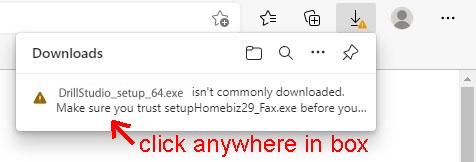

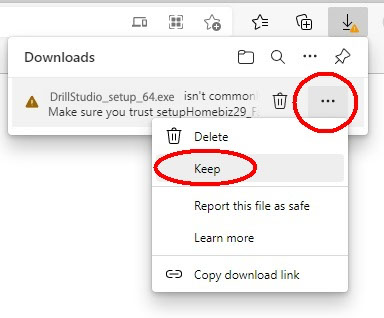
② If you hover your mouse over the message, then in the right hand side three dots appear.
Select the three dots and a sub-menu will appear with 'Keep' as an option.
Note that it is not the top three dots, but the one next to the message you should click
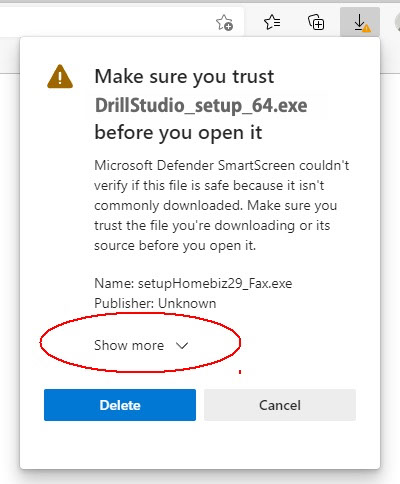
③ Another box will appear, with the options Delete and Cancel.
There is also a link that says Show More. Please click this link.
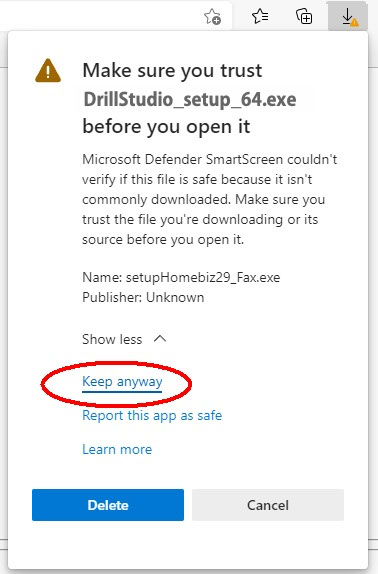
④ When you have clicked the link, three options appear.
Select 'Keep Anyway'
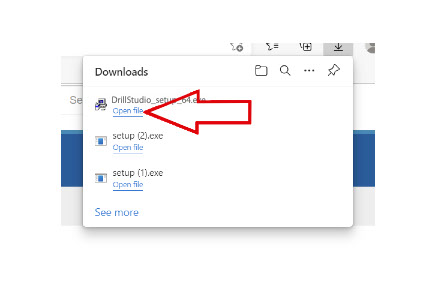
⑤ Now you will be able to download and install Payback.
Click 'Open File' to begin the installation process
If you get a warning like the one below in Googl
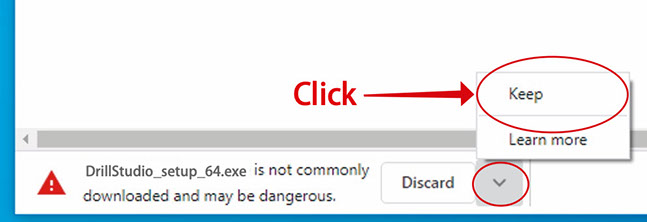
Since there is nothing wrong with the application itself, please use the following method to download it.
① Click the arrow to the right of "Discard."
② Click "Continue" in the pop-up that appears.
Warnings when installing on Windows
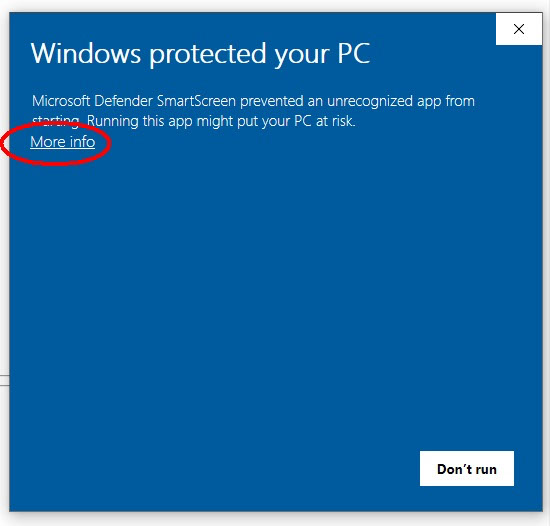
Additionally, you may see the following warning:
In that case, click "Details".
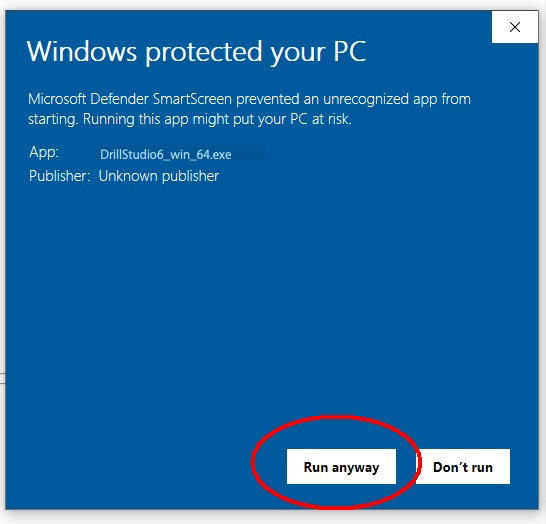
Click "Run" when it appears.
In addition, the following will be displayed if the computer does not have NET Framework installed.
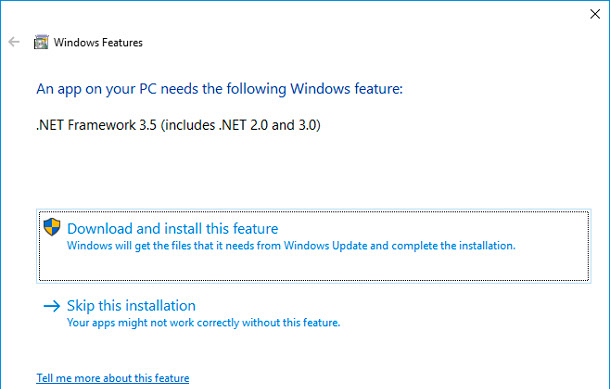
"Download and install this feature"
and follow the installer instructions.
Warnings when installing on Mac
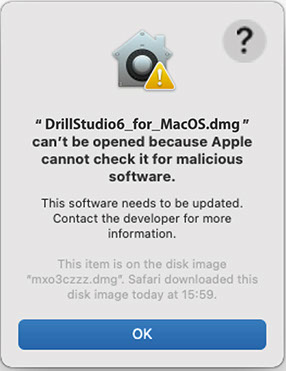
If the alert "Cannot open because it cannot be confirmed whether it is malicious software" is displayed at startup, click the [OK] button once to close it.
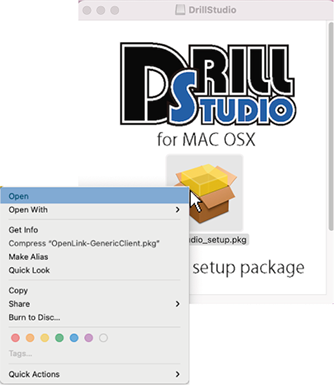
When opening a pkg file, Control-click (or right-click) the pkg to display options that can be performed on the file and select the Open option.
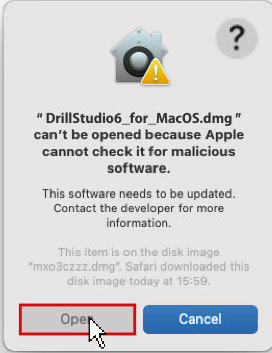
Then, the [Open] button will be displayed in the same window as before, so click it to start.
If you don't see the Open button, it may be blocked by your security settings.
In that case, follow the steps below to allow the system to open Drill Studio.
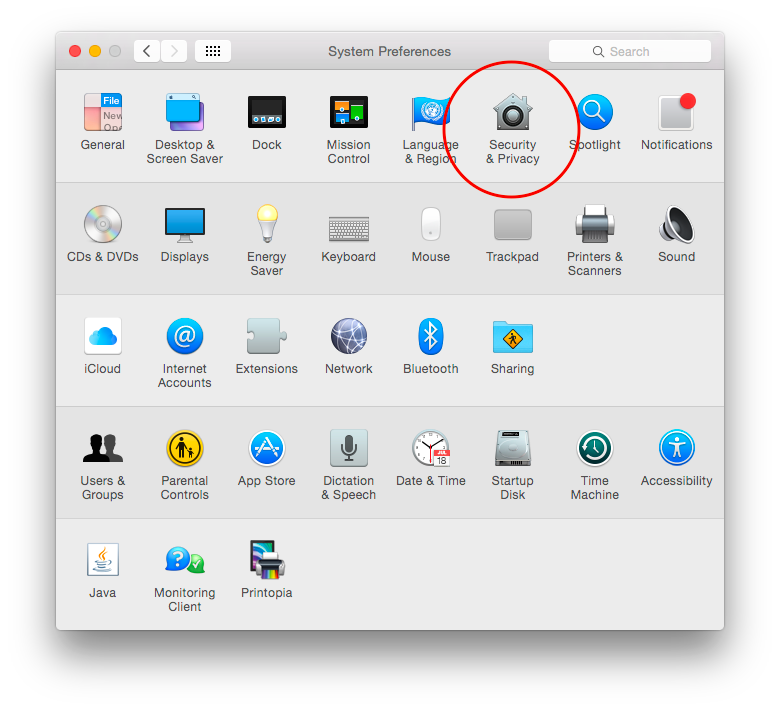
From System Preferences, click Security & Privacy
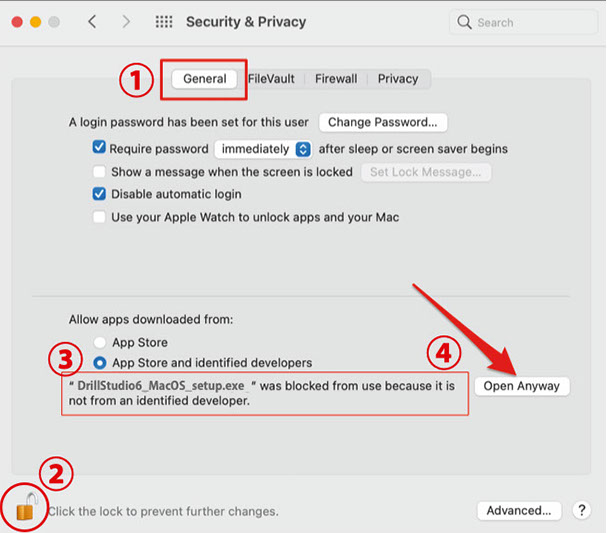
You can open it by selecting "Allow applications from the App Store and identified developers" in "Allow applications downloaded from" in "General" and clicking "Open anyway".
If you are unable to install even after following the procedure, please send us a direct message to the official SNS account and we will support you.




Copyright (C) AUCS JAPAN All Rights Reserved.